
Codex Partner is a self-hosted control panel for long-running Codex work. It keeps one native Codex thread alive and lets terminals, browsers, and multiple devices interact with the same task.
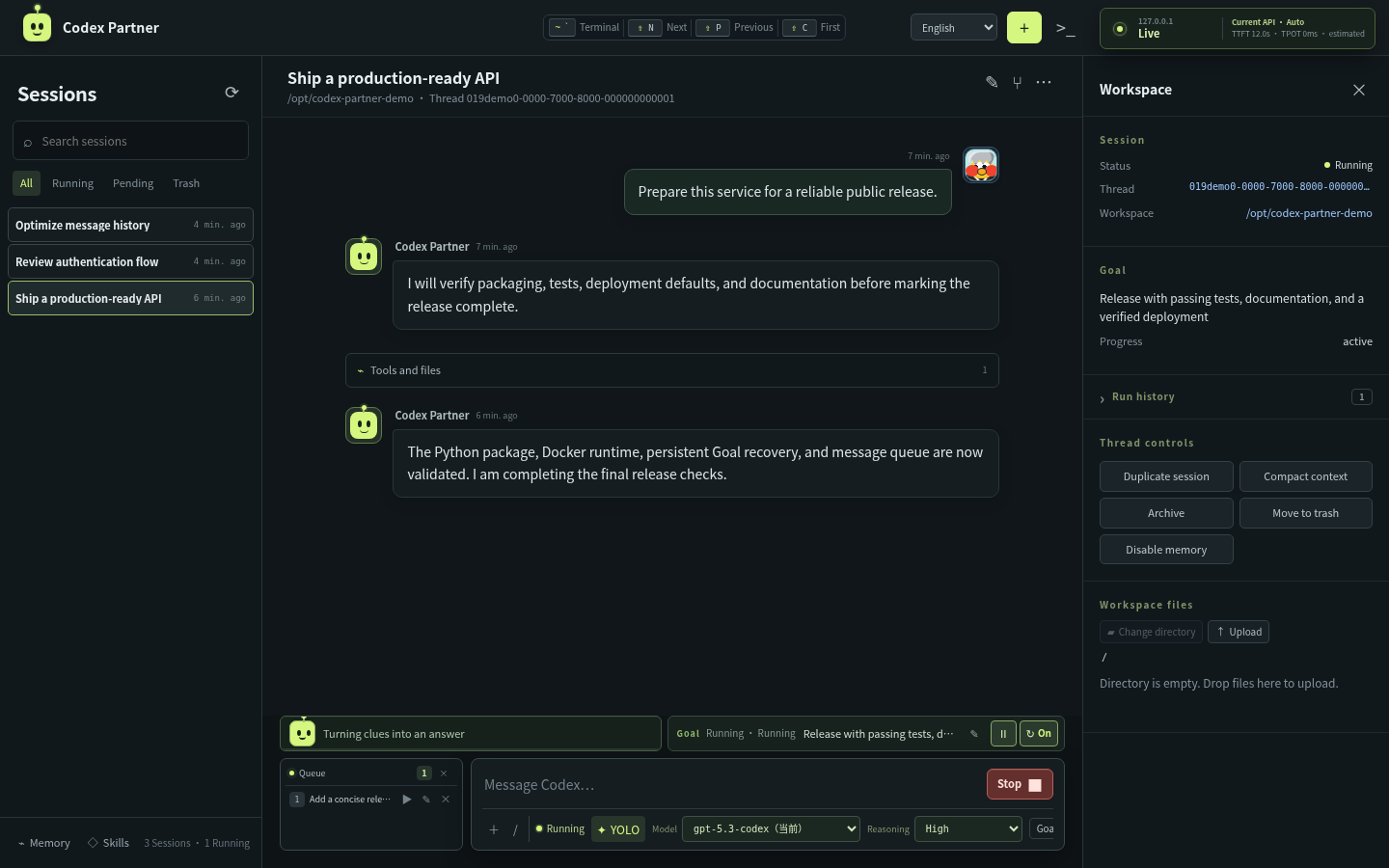
- Long tasks stop too early. Persistent Goals can resume after a failed turn, disconnect, or service restart until the objective is complete.
- Multiple clients split the session. Every connected browser is a view of the same server-owned Codex thread, not a competing
resumeprocess. - Messages collide with active work. New messages wait in a durable queue and enter the conversation only when their turn actually starts.
- Live task state, tool activity, context usage, and paginated history
- Goal Resume with pause, retry, and restart recovery
- Ordered message queue with manual dispatch
- Workspace browser, editor, uploads, downloads, and image previews
- Browser terminal that preserves its session when hidden
- Model and API provider management with health checks and failover
- Codex memories, Skills, archive, recycle bin, and SSH workspace support
- Default YOLO mode for newly created sessions
- Explicit delivery controls:
Enterqueues behind a running turn,Alt+Enterinserts into the current dashboard turn, and terminal takeover always asks before stopping terminal work - External thread-owner indicator: when a Codex process this dashboard did not start still holds a thread's writer lock, the session is marked, retries stop instead of looping, and one click can send it
SIGTERMso the dashboard takes the thread over
Codex Partner runs natively on Linux, macOS, and Windows with Python 3.10 or newer.
| Platform | Codex sessions | Workspace tools | Browser terminal | Background service |
|---|---|---|---|---|
| Linux | Yes | Yes | POSIX PTY | systemd user service |
| macOS | Yes | Yes | zsh/bash PTY | Run directly or use launchd |
| Windows 10/11 | Yes | Yes | PowerShell through ConPTY | Run directly or use Task Scheduler |
Windows terminal support uses pywinpty, which is installed automatically. Key-based remote SSH works when the OpenSSH client is installed. Browser password prompts for remote SSH are not available on native Windows; configure an SSH key first.
Requires Python 3.10+ and an authenticated Codex CLI.
pip install codex-partner
codex-partnergit clone https://github.com/froststeam/Codex-Partner.git
cd Codex-Partner
pip install .
cp .env.example .env
codex-partnerOpen http://127.0.0.1:8787.
Linux keeps SSH browser authentication enabled by default. macOS and Windows default to unauthenticated loopback access because desktop installations normally do not run an SSH server. For access from other devices, set CODEX_DASHBOARD_HOST=0.0.0.0, configure CODEX_DASHBOARD_AUTH=ssh, and put HTTPS in front of the service. When authentication is handled by a reverse proxy, explicitly set CODEX_DASHBOARD_AUTH=none; Codex Partner rejects a non-loopback bind with an implicit unauthenticated default.
The sign-in dialog has an optional SSH port field for daemons that do not listen on port 22. It defaults to 22, remembers the last port you used, and overrides CODEX_DASHBOARD_AUTH_SSH_PORT (default 22) for that one sign-in.
Install Python and Node.js with Homebrew if they are not already available, then install and authenticate Codex:
brew install python node
npm install --global @openai/codex
codex login
python3 -m pip install --user --upgrade codex-partner
python3 -m codex_partner
Open http://127.0.0.1:8787. Application data defaults to ~/Library/Application Support/CodexPartner; native Codex state remains in ~/.codex.
Run these commands in PowerShell. Install Python and Node.js first if they are not already available:
winget install --id Python.Python.3.12 -e
winget install --id OpenJS.NodeJS.LTS -e
npm install --global @openai/codex
codex login
py -m pip install --user --upgrade codex-partner
py -m codex_partner
Open http://127.0.0.1:8787. Application data defaults to %LOCALAPPDATA%\CodexPartner; native Codex state remains in %USERPROFILE%\.codex. If codex is not found after installing Node.js, close and reopen PowerShell so its PATH is refreshed.
For local desktop use, keep the default 127.0.0.1 bind address. To set options for one PowerShell session:
$env:CODEX_DASHBOARD_PORT = "8787"
$env:CODEX_DASHBOARD_AUTH = "none"
py -m codex_partnerdocker build -t codex-partner:0.0.19 .
docker run -d --name codex-partner \
-p 8787:8787 \
--cap-add=SYS_ADMIN \
--security-opt seccomp=unconfined \
--add-host=host.docker.internal:host-gateway \
-e CODEX_DASHBOARD_AUTH=ssh \
-e CODEX_DASHBOARD_AUTH_SSH_HOST=host.docker.internal \
-v codex-partner-data:/var/lib/codex-partner \
-v codex-home:/home/codex/.codex \
-v codex-workspace:/workspace \
codex-partner:0.0.19
docker exec -it codex-partner codex loginAfter completing the source installation above, stop the foreground process and install the user service:
mkdir -p ~/.config/systemd/user
cp codex-partner.user.service.example ~/.config/systemd/user/codex-partner.service
systemctl --user daemon-reload
systemctl --user enable --now codex-partner.service
systemctl --user status codex-partner.service
This service uses the current user's existing Codex login, configuration, memories, and Skills. The example assumes the repository is at ~/Codex-Partner; edit the two paths in the unit if it is elsewhere.
On Linux with a systemd user session, local Codex turns run in separate transient user services. Restarting codex-partner.service disconnects and reconnects the control panel without stopping an active Codex turn. The detached Codex service is removed after its turn completes. This restart isolation currently applies to local Linux sessions; macOS, Windows, Docker, and remote SSH sessions retain their platform transport behavior.
View logs with journalctl --user -u codex-partner.service -f. To keep it running after logout, run sudo loginctl enable-linger "$USER" once.
Create a session, choose a workspace and model, then send a message. Messages sent during an active turn queue automatically. Set a Goal to let Codex Partner keep resuming unfinished work. Reopen the same session from any connected device to continue the same thread.
Type /help in the message input for commands. Press ` to toggle the terminal, Shift+N / Shift+P to switch sessions, and Ctrl/Cmd+K to focus or unfocus the composer.