
Simple and lightweight app to help with Virtual Desktops for Windows 11.
Built with Rust, with a lightweight native Windows tray app and a modern Settings interface.

Get it from Microsoft Store | Download v3.0.2 Executable (.zip) | GitHub Releases
Windows comes builtin with virtual desktops, however some important features are missing, such as displaying which desktop you are on when switching. Windows Virtual Desktop Helper helps fix some of these missing features.
Keywords: Virtual Desktop indicator, Virtual Desktop name, Virtual Desktop number
- Show desktop number in notification area
- Show desktop name when switching desktops
- Show desktop name in a permanent status overlay
- Show prev/next desktop by clicking icons in notification area
- Show desktop initial in notification area
- Custom hot keys for virtual desktop actions
- Jump between the two most recently used desktops with a configurable hotkey
- Jump to desktop numbers using keyboard digits, numpad digits, or function keys
- Modern Settings with light/dark themes, shortcut recording, and live overlay previews
- Automatically recover after Windows Explorer restarts
- Autostart with Windows
- Simple and lightweight
- Configurable
- Free


Windows Virtual Desktop Helper requires Windows 11.
On Windows 10, use version 2.1 or earlier. Version 3 and later do not run on Windows 10.
Settings requires Microsoft Windows App Runtime 2.4 or later. The Microsoft Store installs it automatically; for the portable executable, install the matching architecture of Windows App Runtime.
You can install Windows Virtual Desktop Helper from the Microsoft Store.
Get Windows Virtual Desktop Helper from Microsoft Store
You can just run the executable file WindowsVirtualDesktopHelper.exe to use Windows Virtual Desktop Helper.
Download WindowsVirtualDesktopHelper Executable v3.0.2.zip (x64)
Also available for ARM64 and x86.
A command-line installer for Windows
scoop bucket add extras
scoop install windows-virtualdesktop-helper
Settings needs Windows App Runtime 2.4 or later, as described under Compatibility. See Scoop maintenance for the local manifest and validation workflow.
Install the Microsoft Store version using WinGet. Installation and updates are handled by the Microsoft Store:
winget install --id 9N4HNXPRTSDC --exact --source msstoreDo you like Windows Virtual Desktop Helper?
Currently this app is compatible with Windows 11. For Windows 10, use version 2.1 or earlier. Microsoft is constantly changing their API for the Virtual Desktops, so it appears not all builds of Windows are fully working yet. Please note that if you use bleeding-edge Insider builds, this app may not yet be compatible.
The following versions are not supported:
- Windows 7
- Windows 8
- Windows Server
If you know of a working version or non-working version, please report it.
The following languages are included in the executable:
| Language | Language code |
|---|---|
| English | en-US |
| Simplified Chinese (简体中文) | zh-Hans |
| Traditional Chinese (繁體中文) | zh-Hant |
| German (Deutsch) | de |
| Spanish (Español) | es |
| French (Français) | fr |
Choose General → Language, set general.language: de in configuration, or launch with --general.language de. The default auto follows Windows.
Custom UTF-8 language files such as eo.ftl are discovered beside the configuration file or executable and appear in the language picker after restarting the app. See Contributing translations and language settings.
While the goal of this app is to remain simple and lightweight, there are some features that will still be added:
- Console-Mode: allow a console-mode which can be used by scripts
- Make features more modular
See CHANGELOG.md
Microsoft is constantly changing the Windows APIs for managing virtual desktops - thus usually with each new version we have to write a new API wrapper to interface with Windows. This takes time, and sometimes is not easy to integrate with. Don't expect immediate support for un-released versions of Windows (like Insider).
Windows automatically organizes the notification area icons, and places new ones in the icons menu under the ^ chevron. You can drag the screen number into the main icon area from there to have it always showing.
Windows automatically organizes and orders the notification area icons. You can drag prev/next screen icons to organize them accordingly.
Locally built executables and MSIX packages are unsigned by default. Windows may display an untrusted publisher warning for unsigned executables, and local MSIX installation requires a trusted signature. Packages distributed through the Microsoft Store are signed by the Store.
Unsigned applications can trigger antivirus detections. Download the app from the Microsoft Store or this project's GitHub Releases, and verify published SHA-256 checksums when available. If you believe a detection is a false positive, report it to your antivirus vendor.
Right-click a notification area icon and choose Settings. Closing Settings keeps the app running. If all desktop indicator features are disabled, a small app icon keeps the menu accessible.
The most common and basic settings can be configured using the GUI Settings. Controls save automatically, and overlay previews let you see appearance changes as you make them.
For more advanced configurations and features you can use the config file or command line arguments:
For example, one can set a hotkey to jump to a specific desktop by setting the following setting:
hotkeys.myCustomHotkey1 = "Ctrl + Alt + Shift + D1 = Desktop1"
hotkeys.myCustomHotkey2 = "Ctrl + Alt + Shift + D2 = Desktop2"
or use a custom shortcut for prev/next desktop:
hotkeys.myCustomKey1: "Alt + W = DesktopForward"
hotkeys.myCustomKey2: "Alt + Q = DesktopBackward"
See Hotkeys Documentation for more info.
See Settings Documentation for a full list of all settings.
For the Store/MSIX installation, autostart is managed through Windows Startup Apps, accessible from Settings. Portable builds have an autostart toggle in Settings.
The main file is %APPDATA%\WindowsVirtualDesktopHelper\WindowsVirtualDesktopHelper.exe.config
(for example C:\Users\<USER>\AppData\Roaming\WindowsVirtualDesktopHelper\WindowsVirtualDesktopHelper.exe.config), and can be edited with any text editor.
You can also open the configuration editor from Settings → Advanced. Use Save or Ctrl+S to validate and apply edits.
Additional .config files in the same directory load alphabetically before the main file.
Note: configuration lines that start with # are comments and ignored by the configuration system.
The app can be run with command line arguments to specify any configuration setting. For example, one could run the app with the following command line arguments:
WindowsVirtualDesktopHelper.exe --theme.overlay.overlayBG.dark "red" --feature.showPrevNextIcons.nextChar "]" --feature.showPrevNextIcons.prevChar "["
Command line arguments take precedence over the config file settings and are not saved to the config file.
This program works by using some unofficial/undocumented Windows APIs which Windows uses internally to manage the desktop. The unofficial nature of these APIs is very unfortunate, because it means that each time Windows 11 makes an update, we have to reverse engineer the APIs and their undocumented COM CLSIDs - which is tedious and wastes a lot of time.
This is why the maintainers are reluctant to add too many other features, because it's enough of a task to keep up with all the Windows updates for the basic features.
The app uses Rust and native Windows APIs for the tray icons, overlays, and hotkeys. Settings uses WinUI 3 and opens in a separate process only when needed. See Architecture for more details.
Install Rust 1.95 or later with the MSVC toolchain, Visual Studio C++ Build Tools, and a Windows SDK.
cargo build --release --locked
.\target\release\WindowsVirtualDesktopHelper.exe
Run the automated checks before submitting changes:
.\scripts\check.ps1For MSIX packages, portable ZIP archives, and Microsoft Store upload archives, see MSIX packaging and signing. The included GitHub Actions workflow runs the checks and builds packages for x64, x86, and ARM64. To publish a release, see Releasing. Distributable artifacts are written to dist/.
Edit a file in locales/ and submit a pull request, or try a custom translation without rebuilding:
- Name the file after its locale, for example
eo.ftl, and optionally addlanguage-name = Esperantofor its native name in the picker. - Copy it into
%APPDATA%\WindowsVirtualDesktopHelper\beside the configuration file, or besideWindowsVirtualDesktopHelper.exe. - Restart the app and select the language under General → Language. You can also use
general.language: eoor--general.language eo.
The configuration-folder file takes precedence over a same-language executable-folder file. Missing messages use the embedded language, then English; malformed files are skipped and reported in app.log. These files work in release builds too.
Try the partial Esperanto example, which demonstrates discovery, accented characters and fallback to English. See the translation guide for syntax, validation and adding a bundled language.
The app uses windows-sys for Windows APIs, windows-reactor for WinUI 3 Settings, and uuid for stable identifiers. Release builds ship as a single native executable, with Settings using the Windows App Runtime listed above. Third-party notices are in licenses/.
See Architecture for how the app selects the undocumented virtual desktop interfaces. New Windows builds may require updated API profiles.
Bug reports, contributions, and compatibility testing on different Windows builds are welcome. Follow the manual compatibility checks when changing Windows integration.
Many thanks for the original API work done by MScholtes and contributions by Flaflo.
Thanks to the following contributors:
A free utility to make the Windows 11 Taskbar just a little bit more useful by allowing you to pin quick launchers that always open a new folder, app or anything.
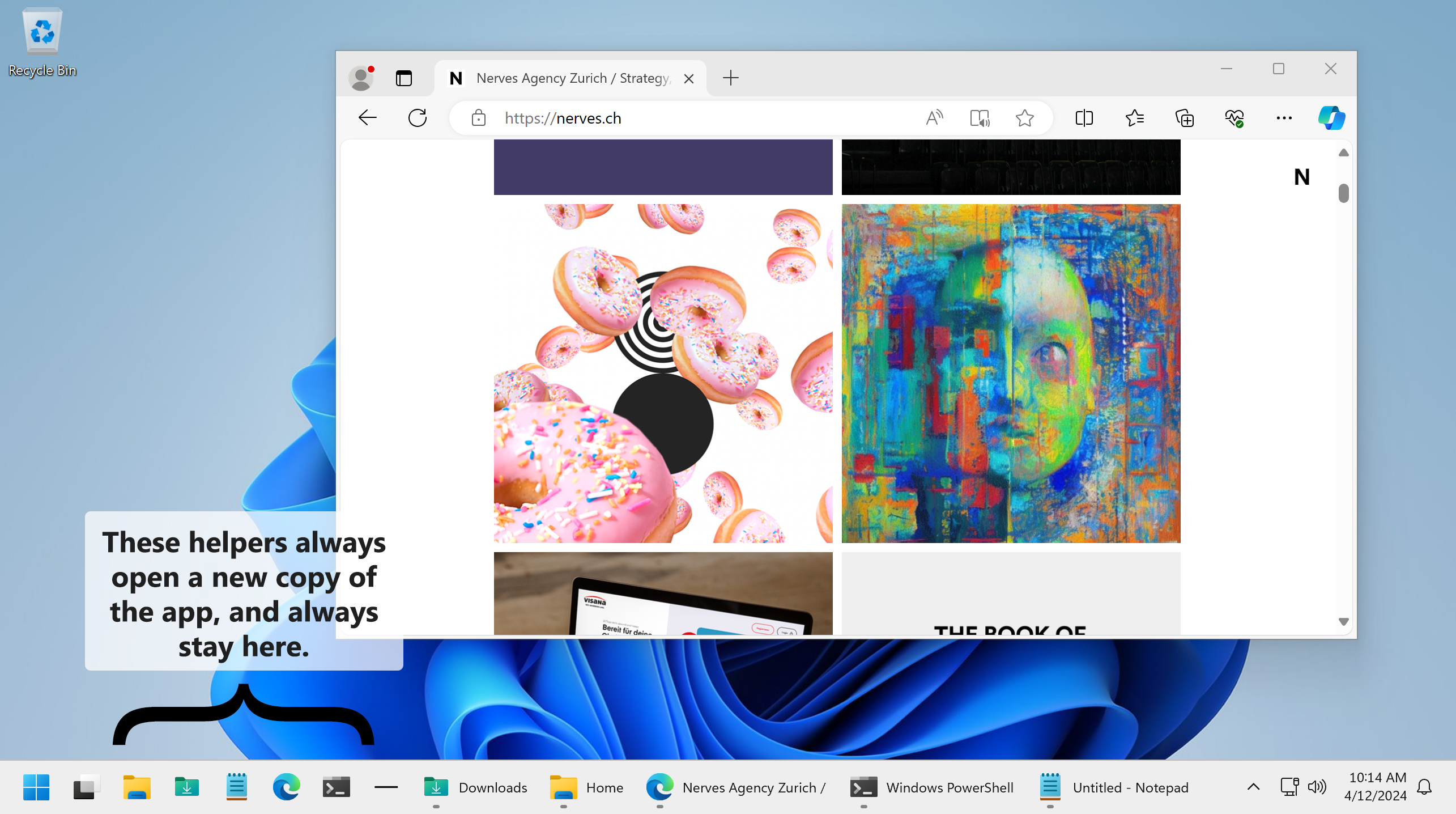
github.com/dankrusi/WindowsTaskbarHelpers
A free and lightweight no-BS PDF viewer. And no, it doesn't have AI.
